
KANAP 26.11.1: everything for an easy start
26.11.1 takes care of your first hour in KANAP: a guided start in a workspace ready to use, Plaid answering your questions about using KANAP and importing your spreadsheets, and one keyboard-friendly way to create every record. A tour of the release.
The first impression often decides what comes next. 26.11.1 is devoted to it:
- The trial asks what brings you and offers three discovery paths (budget, IT landscape map and project portfolio).
- The guides adapt, whether you use the test company or start with your own data.
- Plaid, the AI assistant built into KANAP, answers your questions about the tool and imports your existing spreadsheets, sparing you a tedious conversion.
- Every record is created the same way, and even faster from the keyboard.
- Screens are lighter too: redundant texts are gone and the interface is more pleasant.
The guided start
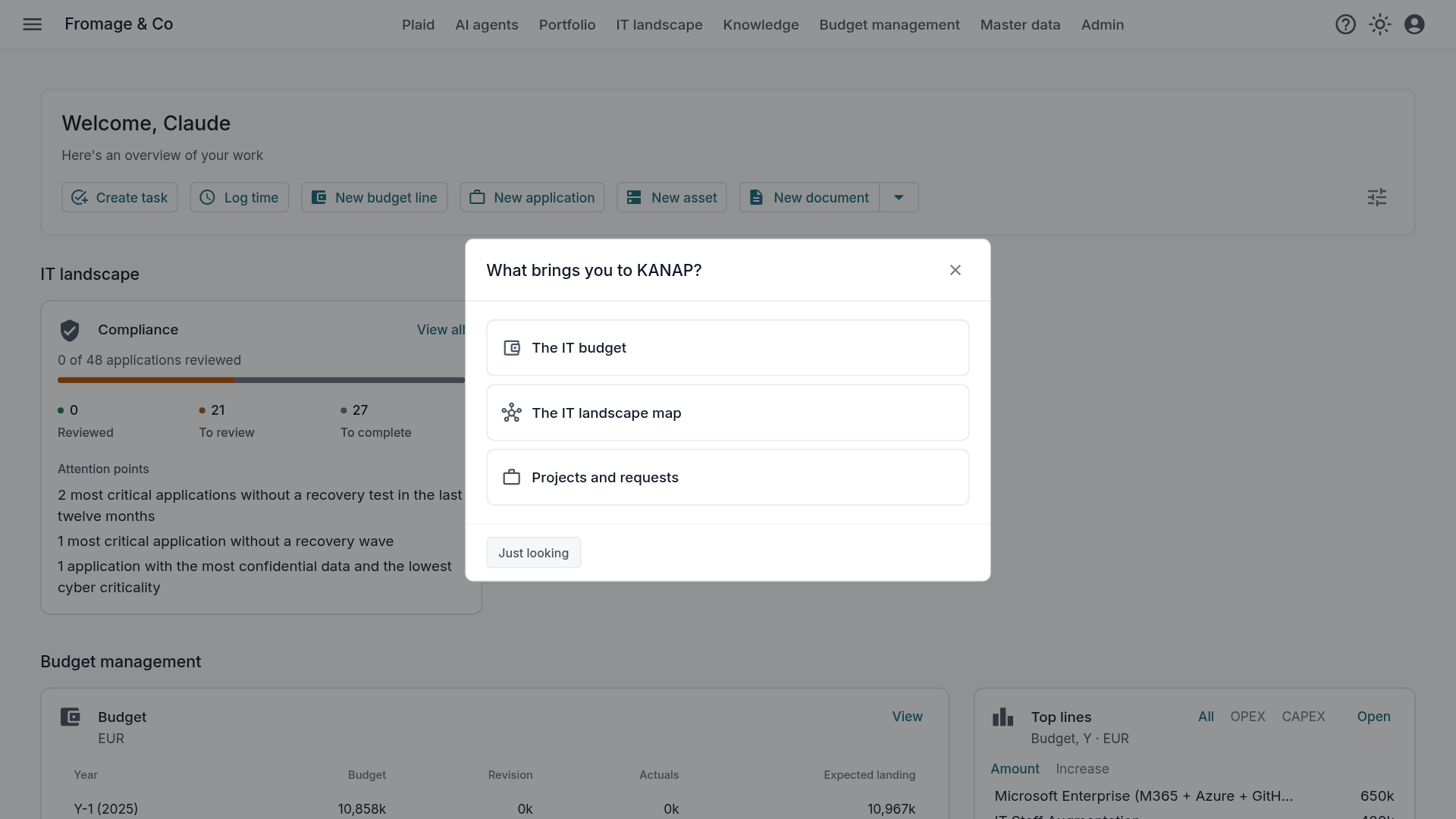
Two questions at the first opening. At the first opening, KANAP asks what brings you (the IT budget, the IT landscape map, projects and requests), then how to start: with the complete example or with your own data. The example, the fictional Fromage & Co, loads in the background in the workspace language: English, French, German or Spanish.
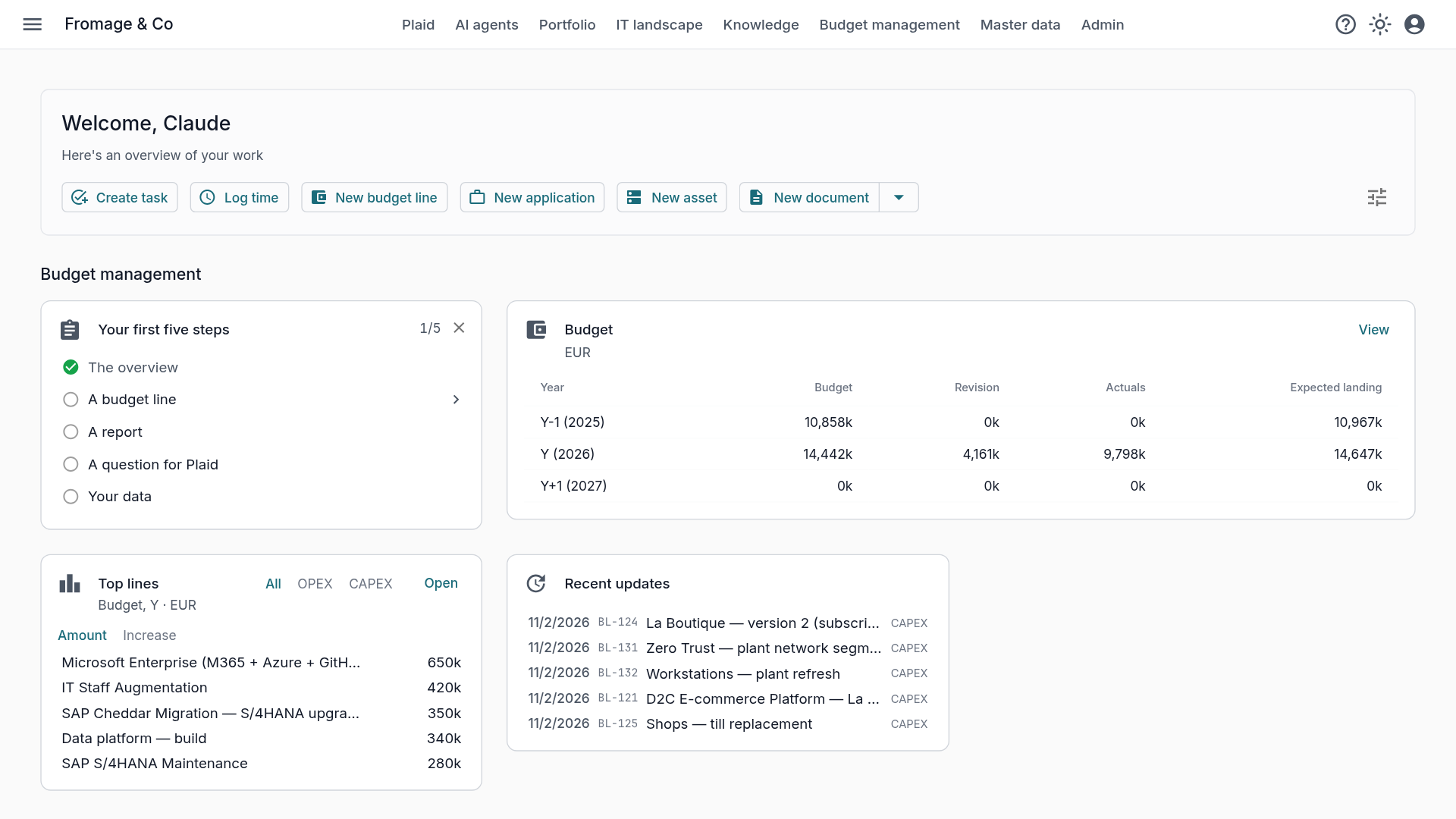
Five first steps per path. The home page puts the section of the chosen path first, with the Your first five steps tile. Each step opens its screen with a short hint. The manual has a new First steps section, one short guide per path and mode to detail the steps, and the Help button leads to the guide of that step.
Plaid with one checkbox. During the trial, an administrator turns Plaid on from its own page in one click. The suggested questions follow your path.
Plaid answers your questions about KANAP. Plaid reads the user manual of the installed version. To a “how do I…” question, it answers with a link to the section of the manual. The MCP server reads the same manual.
A workspace ready to use. A new workspace starts already equipped, whether it is a trial, a reset or the first start of an on-premise installation. The data you load finds its place at once:
- four analytics dimensions to classify budget lines, with their values, in the workspace language: Cost pool, IT tower, Purpose and Priority;
- a chart of accounts;
- Windows Server and Ubuntu in the technologies, with their end of support and vulnerabilities already tracked;
- three request sources (IT, Business, Compliance) and five project categories, in the workspace language, to file your first requests;
- phase templates and evaluation criteria for the portfolio.
These are ordinary values: you rename, extend or delete them like any other.
One way to create every record
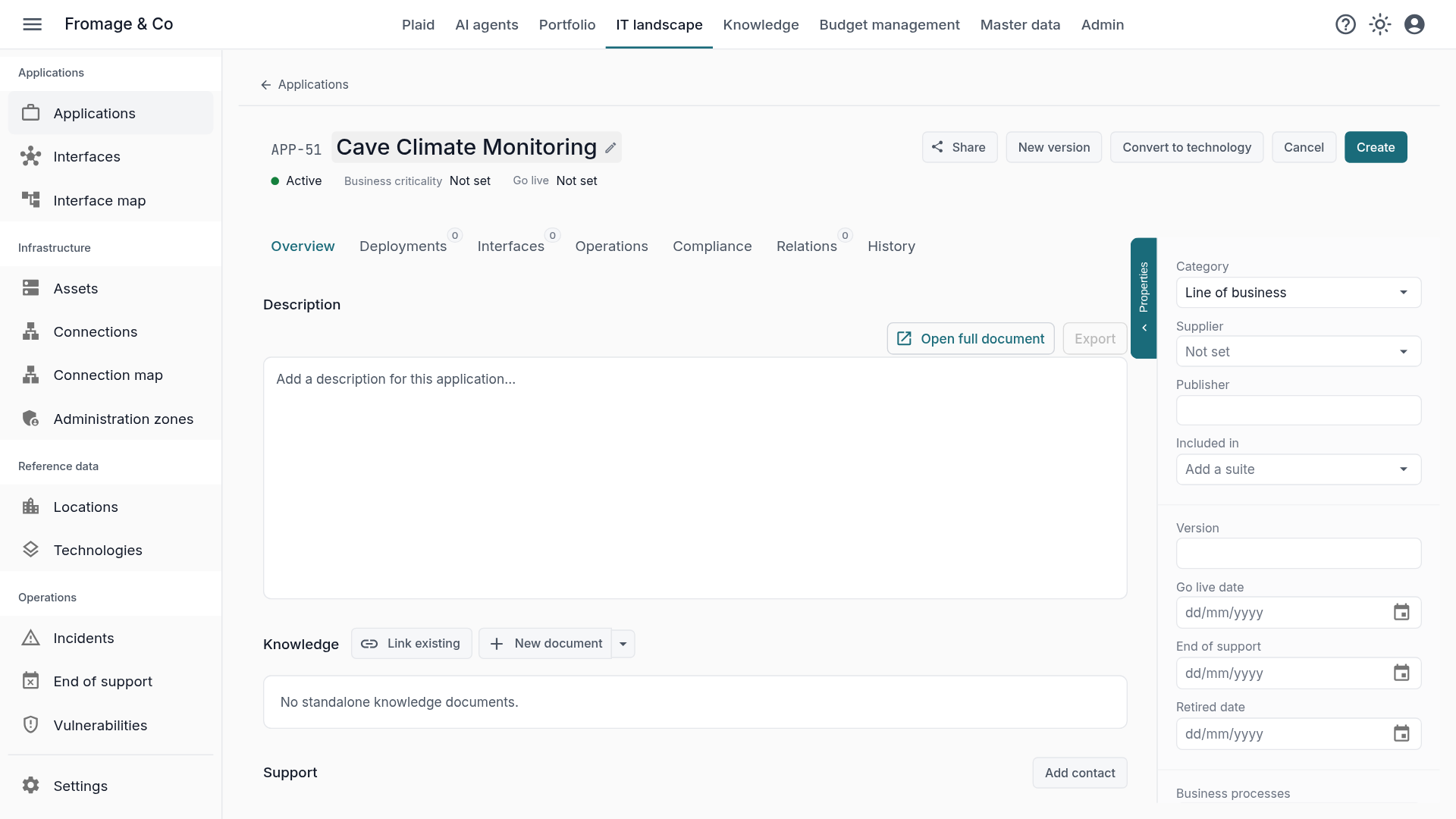
Every KANAP record now shares the same creation interface. You type the name in the header, and the record exists at once, with all its tabs. Required fields are checked when you create it.
Everywhere in KANAP. Applications, requests, projects, incidents, budget lines, contracts, assets, connections, interfaces, tasks, documents, business processes, and the reference data, from companies to sites. An interface also waits for its source and target applications.
Fast from the keyboard. Type the name and confirm with Enter, or press Tab to move to the required fields still empty and to the description. Press Ctrl+S to create the record. While a record is being created, its header shows two buttons: Create creates it and takes you back where you came from, Cancel deletes it.
Plaid imports your spreadsheets
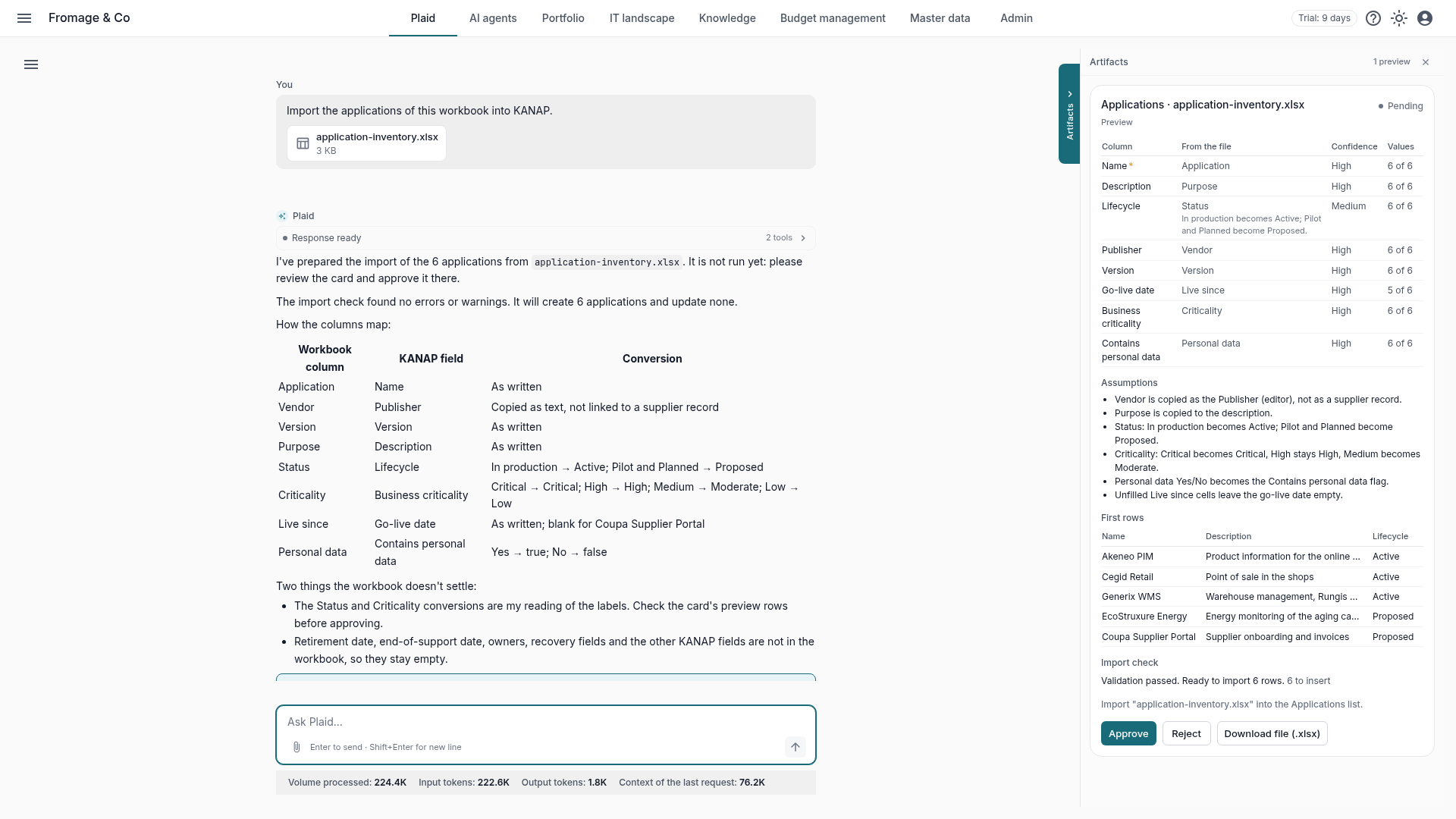
You already have files for your budget, your applications, your assets, in Excel or CSV format. You can now give them straight to Plaid, which adapts them to the KANAP import format.
Attach the file, Plaid maps it. Plaid accepts an .xlsx workbook or a CSV file, up to 5 MB and 20,000 rows. Ask it to import the file into a list. For each column of the import, it shows the column of your file it reads and how sure it is, how it read dates, numbers and catalog values, what it could not read, and the first rows as they will be imported. You correct it in the conversation (“the Owner column is the IT owner”) or you approve.
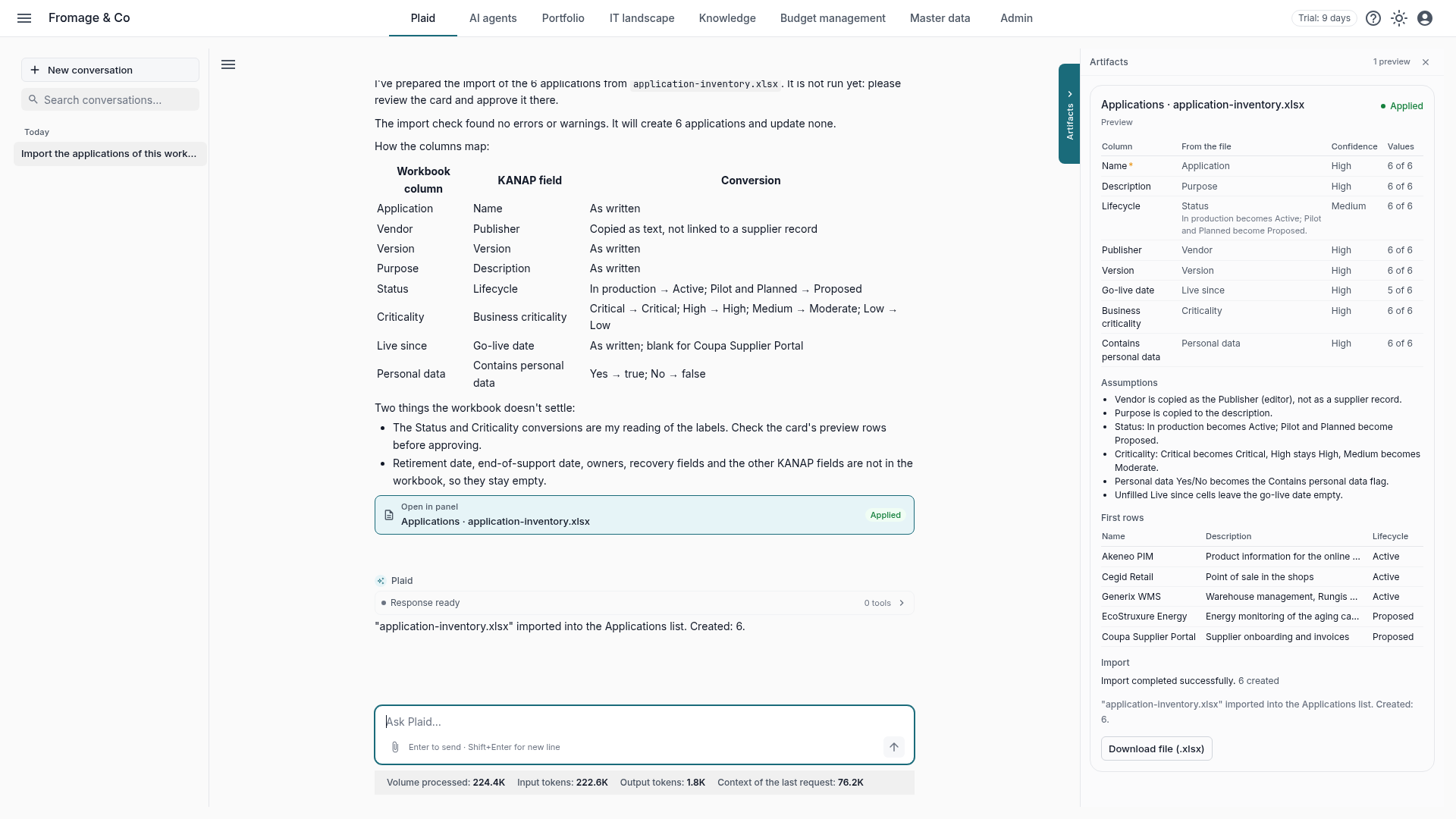
The list’s own import, with your rights. On approval, Plaid goes through the import of the list, with its checks and your rights: it imports what you could import yourself. The card shows what was created, updated or refused, with the line numbers of your file. The prepared file can be downloaded as .xlsx, and the audit log records each import. The AI model receives only a summary of the file.
Simpler imports, with or without Plaid. The main import dialogs offer Download an example: a workbook with sample rows and the accepted values. Columns carry their title in the screen language, and the import reads these titles in any language.
Business processes, the ISO 9001 way
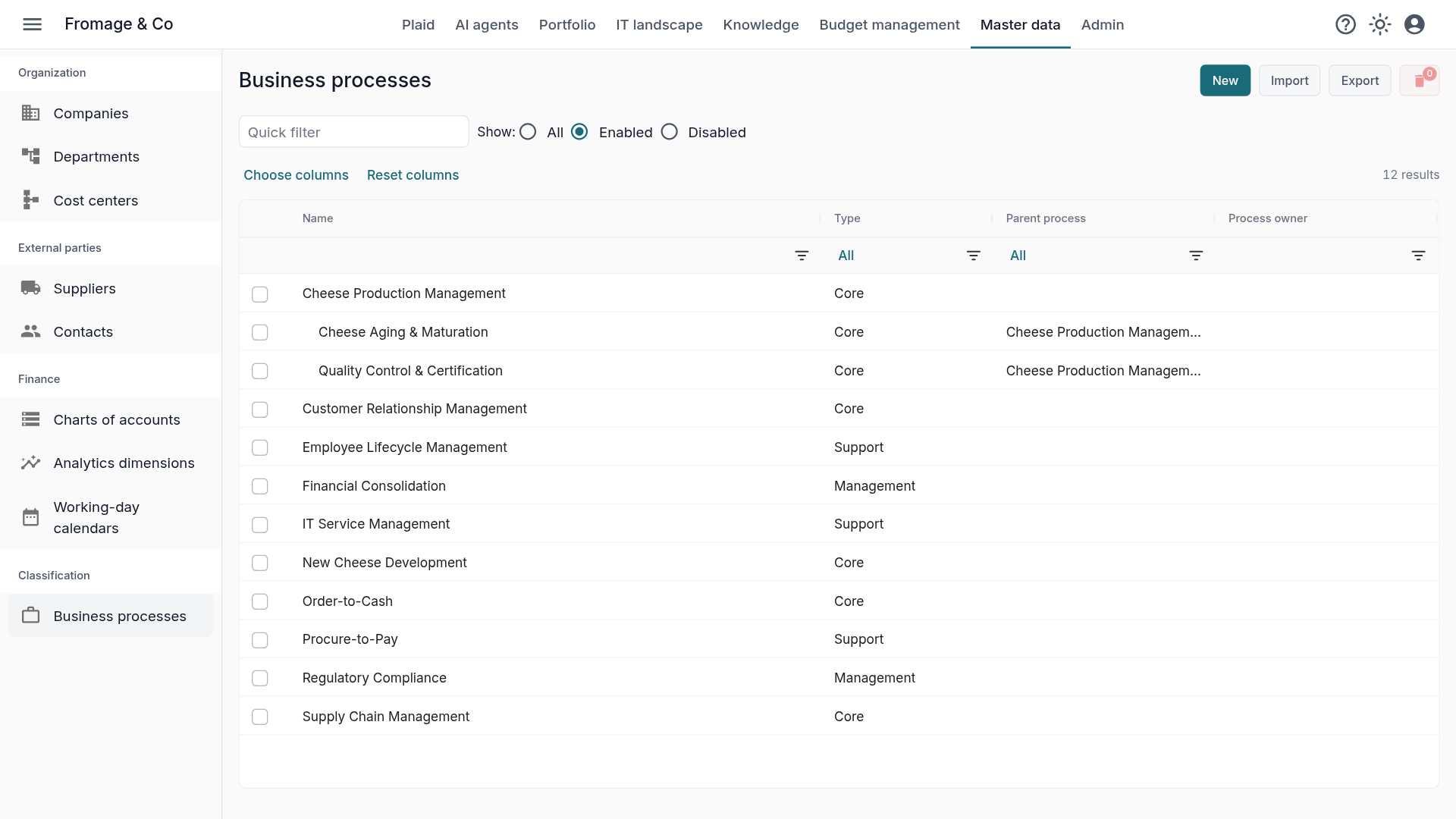
A process map is almost always hierarchical: macro-processes, processes, sub-processes. KANAP now describes it that way.
A type and a parent. Each process takes an ISO 9001 type (management, core or support) and a parent process. The list shows as a tree, pickers show the full path (Parent › Child), and search finds a process by the name of its type. Its page follows the other records, History tab included. See the Business processes page of the manual.
Customization improvements
A logo for dark mode. Branding accepts a second logo, shown in dark mode.
Your workspace name. The workspace name, set in Administration > Branding, appears in the browser tab, as the name of the installed app, in e-mail subjects and headers, and on the authorization page of AI tools connected through MCP. Without a logo, it takes the logo’s place in the header and on the sign-in page. Password reset and invitation e-mails carry the workspace logo and colour. See the Branding page of the manual.
Other improvements
- Lighter screens. Help sentences that repeated the obvious have left every space, from budget to administration. Explanations that are still useful open from an information icon beside the label.
- A home page your way. The home page groups its tiles in sections (My work, Portfolio, IT landscape, Budget management). You reorder, hide or add sections and tiles in place, and a tile with nothing to show is hidden.
- Limited data access: people limited to part of the budget edit suppliers and contacts, as their role allows. Deleting and importing them stay reserved to people with access to all data.
- An asset always has a location, which you can create from the asset. A location that still holds assets can no longer be deleted.
- The budget gets to the point. The budget list opens on its amounts, a line’s Budget tab on its chart, and the home Budget tile shows the total per year (OPEX and CAPEX on hover).
- Password reset, account unlocked: a completed reset lifts the block caused by failed sign-in attempts.
- AI cost, answer by answer. Each AI model can be given a reasoning effort, and Usage & costs adds up the cost of each Plaid answer.
This release also updates the dependencies of the API, the interface and the site, and fixes published vulnerabilities.
Upgrading
On the hosted service, there is nothing to do: you are already on 26.11.1.
If you host KANAP and follow the stable branch, go straight to 26.11.1, after reading the on-premise section of the release notes. If your installation predates 26.10.1, move it to stable first, as the operations guide explains.